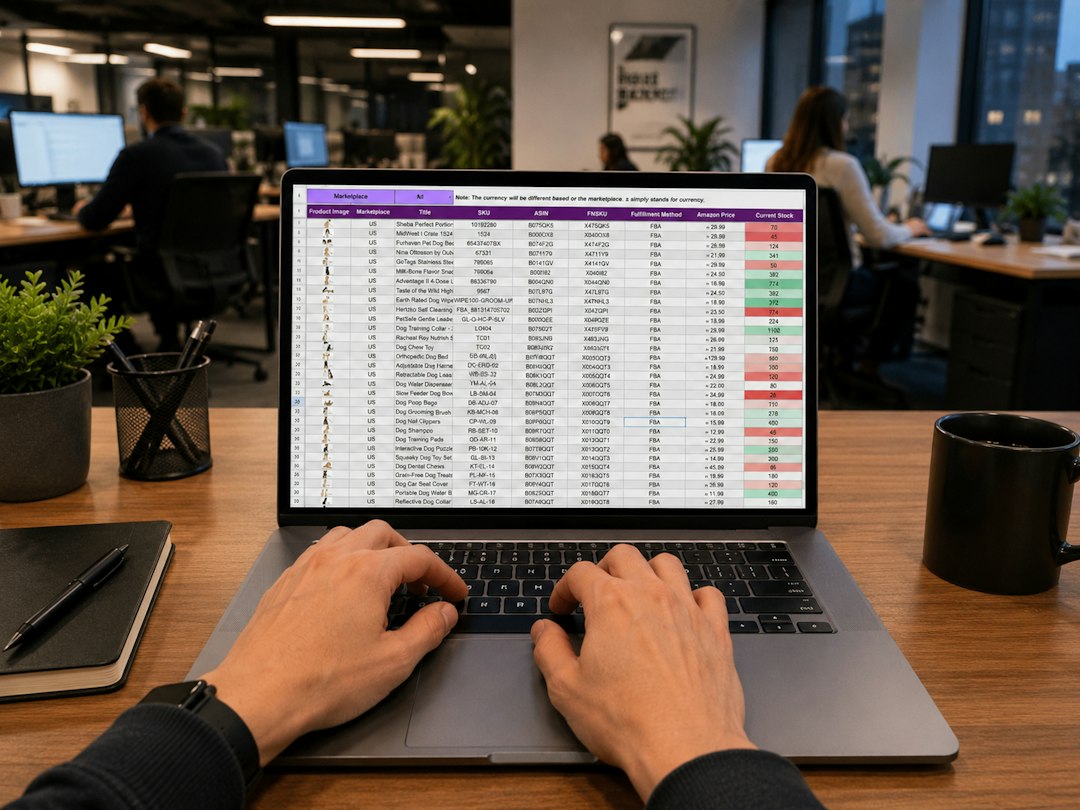
A cross out price is the original or reference price shown with a line through it next to a lower sale price to signal savings, and it works by anchoring value as long as the reference is truthful. To implement it fast, put the higher amount in a Compare at or Regular/List field and the lower amount in Price or Sale price on platforms like Shopify and WooCommerce, or use each marketplace’s discount tools and eligibility rules on Amazon, where strikethrough is based on a 90-day Typical Price, not just any number you type.
In short, set a real recent reference price, schedule a limited-time sale, and let the storefront render the crossed-out number wherever eligible. On Amazon, submit a realistic List Price and consider promotions; on eBay, use its Promotions Manager and meet program rules; and across channels, keep references honest so the strike displays reliably and you maintain trust while lifting clicks and conversions.
What is a cross out price (and when to use it)
In plain English, a cross out price is a higher reference amount displayed with a line through it next to your current lower price. You will also see terms like strikethrough pricing, slashed pricing, compare-at price, regular price, list price, or MSRP. The visual cue cooperates with price anchoring: shoppers judge a deal relative to a known reference, so the strike highlights perceived savings and can speed up decisions.
Use it when running time-boxed promos, clearing seasonal inventory, or reactivating slow movers. It also stands out in collection grids and search result cards, where a visible strike can nudge click-through and add-to-cart. Where it can backfire is everyday-low-price or prestige positioning: constant strikes can erode brand perception. Keep promotions limited and honest, with clear start and end dates, and let regular pricing reappear between campaigns to reset expectations.
Time and cost: most storefronts support the feature natively and you can enable it in minutes. Manual edits take a few minutes per SKU; bulk CSVs and sale scheduler apps speed up catalogs. Before activating any sale, run a quick margin check: confirm unit cost and fees, choose a sale price that preserves contribution margin, and verify that the reference price reflects what customers actually saw recently.
Shopify and WooCommerce: set a sale with a crossed-out original price
Shopify quick setup:
- Open a product in Shopify admin. Put the higher amount in Compare at price. Put the current selling amount in Price. Save.
- Preview a collection grid and the product page. Most themes show Compare at as crossed out and Price in bold, often with an optional savings badge.
- For timed promos, use Shopify’s automatic discounts or schedule product availability windows. To handle many SKUs, use Bulk Edit, CSV import, or a sale scheduler app to set a start/end time and roll back automatically.
WooCommerce quick setup:
- Open a product. Set Regular price to the higher original amount and Sale price to the lower amount. Click Schedule to set start and end dates if you want automatic rollback.
- Preview the product and shop archives. Most themes render Regular as a strike and Sale as the live price. If your theme doesn’t, check its price display settings or filters.
Tips for speed, scale, and consistency:
- Round numbers cleanly. 39.90 to 29.90 reads better than 39.87 to 31.14, and it helps conversion tests.
- Use variants carefully. If some variants don’t share the same historical price, avoid showing the same Compare at across all of them; mismatches can confuse shoppers and reduce trust.
- Align taxes and currencies. If your store includes tax in display prices for some regions, verify the strike logic matches local rules. Multi-currency stores should check rounding per currency.
- Stack with other optimizations. When a sale brings more traffic, ensure your checkout is efficient. Practical tactics are in Shopify checkout optimization: 2026 guide.
Theme and app considerations:
- Badges and savings formats vary. Amount saved often resonates for low-ticket items; percent saved can help higher-ticket comparisons. Keep the visual hierarchy clear: current price large, crossed-out smaller.
- Avoid conflicts. Running multiple promo or badge apps can duplicate labels or hide strikes. Turn off overlapping features and test with a staging theme.
- Feeds and marketplaces. If you syndicate to Google, Facebook, or marketplaces from Shopify or Woo, make sure the feed maps regular vs sale fields correctly; mis-mapped feeds can suppress or misreport discounts.
Amazon: strikethrough price rules, setup, and why it may not show
Amazon doesn’t render a strike simply because you enter two numbers. Its systems compute and validate reference signals before showing savings:
- Typical Price: Often based on a median of what customers paid over roughly the past 90 days for the same ASIN and condition. If your current price sits meaningfully below this level, a strikethrough and savings message may appear.
- List Price/MSRP: You can submit a List Price in Seller Central, but it must be realistic and consistent with the brand’s stated MSRP and recent off-Amazon pricing. Inflated list prices are commonly ignored or suppressed.
- Deals and Promotions: Lightning Deals, 7-Day Deals, Coupons, and Prime Exclusive Discounts can create savings callouts and sometimes interact with strikethrough displays.
Ways to trigger a strike responsibly:
- Submit a truthful List Price that matches brand MSRP and aligns with real-world pricing. Keep documentation.
- Lower your offer versus the 90-day Typical Price or run a promotion. Ensure the ASIN’s brand, condition, and variation data are accurate so price history maps correctly.
- Allow time for updates. Price and promo changes can take from an hour to a day to propagate, and longer during peak events.
Amazon fields and paths you can use:
- Offer-level Sale Price with Start/End Date can add time-boxed discounts that systems evaluate for savings badges and, when eligible, strikethroughs.
- Coupons (percent or amount) and Prime Exclusive Discounts apply at checkout and can surface extra savings messages even when the strike is not active.
- List Price lives in the product data, either through UI edits or flat-file uploads. Keep it aligned with brand guidance and recent pricing.
Why a strike may not show:
- Insufficient price history: Very new listings or those with volatile prices may not qualify yet.
- Discount too small: Small deltas from the computed Typical Price might not trigger visual savings.
- Policy moderation: Questionable list prices and savings claims are often suppressed until validated.
- Variation and condition mismatches: Mixing prices across variations or conditions distorts the history signal.
Labels explained:
- “Lowest price in 30 days”: A separate label Amazon calculates, indicating this offer price is the lowest in the last 30 days for the same ASIN and condition. It can appear with, or instead of, a strike.
- Deal badges: When a promotion is active, badges may appear even if no strikethrough displays. The presence of a badge does not ensure a strike will show.
If you want a deeper conversion strategy to support price-led events, read Discover the Keys to Unlocking eCommerce Conversion Rates for on-page and funnel improvements that complement discounts.
eBay, Walmart, Etsy, Mercari: quick comparisons
Each marketplace runs its own program and eligibility checks. Here is a quick overview and a deeper comparison table you can reference during setup.
- eBay: Strikethrough pricing can display through Promotions Manager when your item meets program rules. eBay considers recent price history and competitive context.
- Walmart Marketplace: Savings callouts and strikes appear when promo rules and competitive checks pass. Walmart closely watches reference prices and may remove inflated references.
- Etsy and Mercari: A crossed-out price often appears after you lower the listing price or run a price-drop or promotion feature, subject to category and time-in-price rules.
| Platform | What the crossed-out price is called | Where to set it | Eligibility/rules summary | Where it appears | Typical time to go live | Optional tools/costs |
|---|---|---|---|---|---|---|
| Shopify | Compare at vs Price | Product editor: Compare at price (higher), Price (current) | Any truthful reference price; theme must support strikes and savings labels | Collection grids, product pages, search apps | Instant to a few minutes | Bulk edit, CSV, scheduler apps (often paid) |
| WooCommerce | Regular vs Sale price | Product data: Regular (higher), Sale (lower); optional schedule | Theme renders strike; honest recent pricing expected | Shop archives, product pages, some widgets | Instant to a few minutes | CSV imports, sale plugins (free/low cost) |
| Amazon | Strikethrough vs current; Typical Price and List Price involved | Seller Central: List Price, Coupons, Deals; Offer price and Sale dates | 90-day Typical Price logic, realistic List Price, policy checks | Search cards, PDP near Buy Box, sometimes variations | 1–24 hours; longer in peak windows | Deal fees for premium placements; coupon clip fees |
| eBay | Strikethrough via Promotions | Seller Hub: Promotions Manager | Recent price basis and competitive checks | Search results, item pages | Minutes to a few hours | Optional ad tools; promotions included |
| Walmart Marketplace | Reduced Price/Savings | Seller Center: Promo pricing | Program rules and competitive validation | Search tiles, item pages | Hours to 1 day | Deal programs; ad spend optional |
| Etsy | Sale price with crossed-out original | Run a Sale or lower price in Shop Manager | Recent price basis and category policies | Search cards, listing pages | Minutes to a few hours | Coupon tools; ads optional |
| Mercari | Price drop with strike | Edit listing price or use promotion features | Recent price basis | Search cards, listing pages | Minutes | Optional promotions |
Make it profitable: simple discount and margin math
Strikes should support profit, not just clicks. Before you discount, sanity-check unit economics. Tally your cost of goods (COGS), outbound shipping and packaging, payment and marketplace fees, and a small allowance for returns. Contribution margin equals sale price minus those direct costs. Aim to keep that margin positive and meaningful.
Copy this quick calculation:
- List COGS and per-unit fees. Example: COGS 12.00, shipping 4.00, marketplace fee 15% of sale price.
- Pick a trial sale price. Example: 24.99. Fees at 15% are 3.75. Total costs: 12.00 + 4.00 + 3.75 = 19.75.
- Contribution margin: 24.99 − 19.75 = 5.24. If you budget 1.00 for returns/promo costs, net is 4.24.
Quick break-even discount rule: if your variable cost share is V (as a fraction of sale price), aggressive markdowns become risky once the discount approaches 1 − V. In many catalogs V runs 0.30–0.50; with V at 0.45, a 20% markdown often leaves room, but a 40% markdown might not. Validate for your SKUs with a simple sheet.
Pair discounts with non-price levers to protect margin. Tiered offers and bundles can raise average order value without deeper cuts. For practical math and setup options, see the bulk pricing guide. Operationally, strong delivery promises and fair returns can lift conversion alongside price; frameworks live in returns and shipping optimization.
Brand guardrails and MAP: if a brand enforces minimum advertised price, coordinate any promo with the brand owner and follow channel rules. For your own brand, use strikes to turn old stock, end seasons cleanly, and stimulate demand during key events without training customers to wait for constant discounts.
Stay compliant: truthful reference prices and dark-pattern pitfalls
Strikethrough draws attention, which is why platforms and regulators watch it closely. Keep references clear, recent, and supportable. Use this checklist to keep campaigns clean and consistent.
- Use a recent reference price customers actually had a chance to pay.
- Keep dated evidence of past prices, such as exports or screenshots.
- Limit sale duration. Perpetual sales undermine trust and may be flagged.
- Show savings math where supported. Avoid exaggerated claims or vague superlatives.
- Keep pricing consistent across channels so marketplace systems do not suppress your strike.
- Understand Amazon’s 90-day Typical Price and the “Lowest price in 30 days” label.
- Verify enrollment and eligibility for any marketplace program that displays strikes.
- Review your storefront after each change to confirm the display matches your intent.
In the United States, truth-in-advertising norms apply to reference and savings claims. Marketplaces run automated checks and suppress questionable references. Avoid inflated list prices and be precise with savings language. For category pages and SEO during promo windows, keep copy honest and specific to the campaign dates.
Troubleshooting: crossed-out price not showing or disappearing
When a strike doesn’t appear, work through this playbook by channel.
Amazon
- Build price history: New listings may need sales data to compute a Typical Price. Run modest promos over time to establish a baseline.
- Meet the discount threshold: If you’re only slightly below the typical level, a strike might not render.
- Allow for indexing: Many changes propagate within 1–24 hours; heavy traffic periods can take longer.
- Recheck ASIN details: Brand, condition, and variation mapping must be correct or history looks inconsistent.
- Audit List Price: Remove inflated MSRP, align with brand site and recent off-Amazon pricing.
Shopify and WooCommerce
- Theme cache: Clear the theme or server cache and test in an incognito browser or on a different device.
- App conflicts: Two promo or badge apps can collide. Temporarily disable one, then retest.
- Field order: Ensure Compare at or Regular is higher and Price or Sale is lower, then save. Typos happen.
- Currency and region logic: Some themes hide savings on currency switches or with tax-included displays. Test in the default currency and standard tax setting first.
Marketplaces
- Program enrollment: Confirm you’re in the right promotion program and that the item qualifies (category, brand rules, price basis).
- Condition mismatch: A strike may not show if the offer condition doesn’t match the history used for reference.
- Moderation windows: eBay, Walmart, and others sometimes take hours to review updates; wait, then recheck.
Where the strike appears
- Product detail pages: Typically near the main price with a visual line through the reference.
- Search cards and category grids: Often show the strike in smaller text; this can increase click-through.
- Cart and checkout: Some themes and marketplaces repeat savings, but others keep these areas clean.
Terms you may encounter
- Strikethrough price, crossed-out price, slashed price: Common synonyms for the visual display.
- Compare at price, Regular price, List price: Fields used to store the higher reference.
- Override price: A temporary price you set to replace the default on a channel, POS, or feed. It does not by itself create a strike; you still need a stored reference value for the cross-out to render.
Handled well, a crisp, honest cross out price can lift clicks and conversions without eroding brand value. Keep the reference real, the window short, and the math solid, and your sale price can do its job.